



Imagine sitting in a busy coffee shop in Bengaluru or attending an online lecture from a hostel room in Delhi. Suddenly, the ceiling fan slows down, the lights flicker, and a dreaded power cut hits. Glance at the corner of the laptop screen, and the battery icon flashes a scary 12% red warning. Panic sets in as unsaved work hangs by a thread. Every student, remote worker, and office employee in India knows this exact feeling. Between scorching summer afternoons, unexpected load shedding, and long daily commutes on crowded metro trains, keeping a laptop alive is a daily battle. High room temperatures push cooling fans into overdrive, while unstable voltage spikes put heavy stress on delicate lithium-ion cells. Fortunately, squeezing extra hours out of a single charge does not require buying an expensive new machine. Simple tweaks to screen brightness, background apps, and charging habits can transform a dying battery into an all-day powerhouse. By applying smart Laptop Battery Backup Tips For Indian Users, anyone can beat sudden blackouts, stay productive during long shifts, and protect their device for years to come.
Why Indian Weather and Power Conditions Drain Laptop Batteries Faster
Most people blame old hardware when a laptop dies within two hours. However, local environmental factors in India play a massive role in how fast a battery loses its juice. Understanding these hidden enemies is the first step toward fixing the problem.
The Hidden Impact of Indian Summer Heat on Lithium-Ion Cells
Batteries hate extreme heat. Inside every modern laptop sits a lithium-ion battery packed with sensitive chemicals. Research shows that battery cells work best in mild temperatures between 15°C and 35°C. When summer temperatures in cities like Jaipur, Nagpur, or Chennai soar past 42°C, internal heat builds up rapidly. High ambient heat forces the chemical reactions inside the battery to speed up uncontrollably. This causes two major headaches. First, the laptop's internal cooling fans spin at maximum speed to push hot air out, which eats up huge amounts of electricity. Second, extreme heat causes permanent damage, cutting the total battery lifespan nearly in half over a single summer.
Expert Insight: "Lithium-ion batteries degrade almost twice as fast for every 10-degree rise above room temperature. In tropical climates like India, keeping a laptop off soft beds and away from direct afternoon sunlight is just as important as changing software settings." — Dr. Vikramaditya Rao, Electrochemical Energy Researcher
Voltage Fluctuations and Frequent Power Cuts

Across many Indian towns and suburbs, grid power is rarely steady. Sudden voltage drops and unexpected surges happen often, especially during monsoon storms or peak summer evenings. Plugging a laptop directly into a wall socket without protection exposes the charging brick to unstable power. Frequent power cuts also create bad charging habits. Many users keep their laptops plugged in at 100% all day out of fear that the electricity might go out at any minute. Leaving a battery trapped at full charge while the room is warm puts tremendous stress on the cells, slowly killing their ability to hold power.
Read Also: Best Lightweight Tablets For Travel In India: Top Slim Picks for 2026
Top 10 Laptop Battery Backup Tips For Indian Users
Improving runtime does not require advanced computer skills. Implementing these proven Laptop Battery Backup Tips For Indian Users will immediately add extra hours of screen time to any Windows or Mac laptop.
1. Lower Screen Brightness and Adjust Refresh Rates
The display is the single biggest power hog on any computer. Cranking the brightness up to 100% drains energy faster than almost any app. When sitting indoors under normal room lights, dropping screen brightness to 40% or 50% makes text easy to read while saving massive amounts of power.
Modern laptops also feature high-refresh-rate screens, such as 120Hz or 144Hz displays. While smooth scrolling looks great, high refresh rates chew through battery reserves. Switching the display setting down to 60Hz when unplugged is one of the best ways to improve laptop battery backup instantly.
2. Why Is Power-Saving Mode Important for Laptop Battery Life?
Many people ignore the built-in battery saver toggle until their charge drops below 10%. Turning this feature on early changes how the entire computer operates. Understanding why is power-saving mode important for laptop battery life helps users get maximum mileage during long days away from a wall plug.
When activated, Windows Energy Saver or macOS Low Power Mode automatically slows down background tasks. It pauses non-essential email syncing, dims the screen slightly, and stops heavy system updates from downloading silently. Instead of waiting for an emergency, turning on power-saving mode as soon as the charger is unplugged easily adds 60 to 90 minutes of extra work time.
3. Kill Heavy Background Apps and Browser Tabs
Open web browsers are notorious energy vampires. Keeping thirty tabs open in Google Chrome while running Spotify, WhatsApp Desktop, and Telegram in the background forces the processor to work nonstop. Even minimized apps continue pinging the internet and burning watts.
Opening Task Manager on Windows or Activity Monitor on Mac reveals which programs consume the most power. Closing unused apps and turning on Memory Saver or Sleeping Tabs inside the web browser stops idle websites from draining the battery.
4. Master the 20–80 Charging Rule for Long-Term Health
Treating a laptop battery like a phone battery ruins its capacity within a year. Charging to 100% and draining all the way down to 0% puts heavy chemical strain on the battery walls. Tech experts recommend keeping the charge level between 20% and 80% for everyday desk use.
Most major brands sold in India—including Lenovo, ASUS, Dell, and HP—include built-in battery care software. Turning on features like Conservation Mode in Lenovo Vantage or Battery Health Charging in MyASUS stops the laptop from charging past 80% even when plugged into the wall all day.
5. Turn Off Keyboard Backlights and Unused Ports
Glowing RGB keyboards and bright white key backlights look stylish at night, yet they quietly sip battery power every minute. If typing in a well-lit room or during the daytime, pressing the function key to turn off the keyboard light saves valuable energy.
External gadgets plugged into USB ports also draw steady power. Portable hard drives, wired gaming mice, USB cooling pads, and phone charging cables pull electricity straight from the laptop battery. Unplugging unnecessary accessories when working on battery power keeps energy focused strictly on the screen and processor.
6. Use Dark Mode and Shorter Screen Sleep Timers
Screens with OLED or AMOLED panels save substantial electricity when displaying black pixels. Enabling system-wide Dark Mode and choosing a dark desktop wallpaper reduces power draw while easing eye strain during late-night study sessions.
Walking away from a desk for a quick cup of chai often leaves the laptop screen glowing for 15 or 20 minutes. Setting the screen timeout to 2 minutes and sleep mode to 5 minutes when on battery power ensures zero energy gets wasted during short breaks.
7. Disable Startup Programs That Slow Down Your PC
Every time a laptop boots up, dozens of hidden programs launch automatically. Video game launchers, cloud storage tools, and chat apps immediately start running in the background, eating up RAM and draining power from the very first second.
Navigating to Task Manager > Startup Apps allows users to disable unnecessary programs with one click. Keeping only essential antivirus and driver software enabled speeds up boot times and delivers cleaner laptop battery saving tips for daily use.
8. Switch Off Bluetooth, Wi-Fi, and Location Services When Idle
Wireless radios constantly search for nearby signals, consuming steady power even when no devices are connected. If typing notes offline on a train or revising PDFs during a flight, switching on Airplane Mode stops all wireless antennas from hunting for networks. Even when connected to home Wi-Fi, turning off Bluetooth and Location Tracking prevents background apps from checking GPS coordinates or scanning for wireless earbuds every few seconds.
9. Keep Air Vents Clean and Avoid Soft Surfaces
Dust is a silent killer in Indian homes, especially near busy roads or during dry summer months. Fine dust particles clog the tiny intake vents underneath a laptop, trapping hot air inside the chassis. When heat cannot escape, internal temperatures spike and fans spin furiously.
Using a laptop on a soft bedsheet, pillow, or thick blanket blocks airflow completely. Always place the machine on a hard, flat wooden table or use a simple aluminum laptop stand. Blowing compressed air into the vents every few months keeps the system cool and efficient.
10. Always Use the Original Charger and Surge Protector
Cheap local chargers found at roadside markets lack proper voltage regulation. Using an uncertified adapter sends uneven power into the motherboard, overheating the battery and risking permanent hardware failure. Always stick to the original power brick supplied in the box or an official USB-C PD charger matching the exact wattage. Plugging the charger into a good-quality surge protector strip guards the laptop against sudden Indian grid voltage spikes, protecting both the adapter and the internal battery cells.
Read Also: Long Battery Life Laptops In India: Top Picks for All Day Power
How Can Indian Users Improve Laptop Battery Backup Based on Daily Lifestyle?

Different lifestyles demand different power strategies. A college student rushing between classrooms faces very different challenges than a software engineer working from home. Customizing settings based on daily routines unlocks peak efficiency.
Laptop Battery Backup Tips for College Students
Campus life means hunting for rare wall sockets in crowded libraries and lecture halls. Following smart laptop battery backup tips for college students ensures a single morning charge lasts through evening group projects.
- Download Study Materials Offline: Streaming video lectures over patchy campus Wi-Fi drains power fast. Downloading PDFs, slides, and recorded videos at the hostel before heading to class lets students switch to Airplane Mode while studying.
- Use Lightweight Note-Taking Apps: Heavy software like Adobe Photoshop or massive browser sessions chew through battery life. Using simple, low-power apps like Microsoft OneNote, Notion offline, or Notepad keeps processor usage near zero.
- Carry a High-Wattage Power Bank: Modern USB-C laptops can charge from 65W or 100W laptop power banks. Keeping a certified power bank inside a backpack provides peace of mind during long exam prep days.
Laptop Battery Backup Tips for Remote Workers and Office Users
Working from home or commuting to corporate parks requires reliable battery performance during back-to-back video calls. Applying targeted laptop battery backup tips for office users and laptop battery backup tips for remote workers prevents awkward disconnects during client meetings.
- Turn Off Video Cameras When Possible: Live video conferencing on Zoom, Microsoft Teams, or Google Meet uses massive CPU and webcam power. Turning off the camera during large town-hall meetings where speaking is not required saves up to 30% battery drain.
- Disable Virtual Backgrounds: Blurring the room or using fake office wallpapers forces the graphics chip to work overtime. Sitting against a plain wall and turning off video effects reduces heat and extends runtime.
- Schedule Heavy Cloud Syncs: Tools like OneDrive and Google Drive constantly upload large files in the background. Pausing file syncing while running on battery power and resuming once electricity returns keeps power usage low.
Laptop Battery Backup Tips During Power Cuts
When a sudden blackout hits during peak afternoon heat, every single percentage point counts. Practicing smart laptop battery backup tips during power cuts stretches a half-charged laptop until the inverter or grid power kicks back in.
- Switch to Best Power Efficiency Mode: Click the battery icon on the taskbar immediately and slide the power mode all the way to Best Power Efficiency.
- Use Mobile Hotspot Sparingly: When the home Wi-Fi router dies during a power cut, connecting to a 5G phone hotspot is tempting. However, weak cellular signals force the laptop Wi-Fi chip to work harder. Keep hotspot usage brief and download essential emails quickly.
- Hibernate Instead of Sleep: Standard Sleep mode still uses small amounts of battery power to keep memory active. If a power cut lasts several hours, choosing Hibernate saves open work onto the hard drive and shuts down power draw completely.
Laptop Battery Optimization for Work, Study, and Heavy Multitasking
Modern workdays rarely involve just one app at a time. Balancing spreadsheets, video calls, browser research, and music streaming puts heavy pressure on hardware. Mastering laptop battery optimization for work and study alongside laptop battery optimization for multitasking keeps performance smooth without sacrificing battery hours.
Managing CPU Performance Without Losing Speed
Modern Intel Core Ultra, AMD Ryzen, and Apple Silicon processors feature smart efficiency cores designed to sip power during light tasks. However, running High Performance power plans forces all processor cores to run at top clock speeds even when typing a simple Word document.
Keeping the system on Balanced mode during normal multitasking lets the chip boost speed only when opening heavy files, then drop back down to low power instantly. This delivers snappy speed without overheating the palm rest.
Browser Optimization: Chrome vs. Edge vs. Brave
Web browsers are where most people spend 80% of their day. Choosing the right browser and tweaking a few settings makes a noticeable difference in battery runtime.
| Browser Name | Built-in Battery Saving Feature | Best Use Case for Indian Users |
| Microsoft Edge | Efficiency Mode & Sleeping Tabs | Best overall battery life on Windows 11 laptops |
| Google Chrome | Energy Saver & Memory Saver | Best for users heavily tied to Google Workspace |
| Brave Browser | Built-in Ad & Tracker Blocker | Blocks heavy video ads that drain CPU and data |
| Apple Safari | Native macOS Power Optimization | Unmatched battery efficiency on all MacBook models |
Expert Insight: "Blocking heavy auto-playing video ads and background trackers does more than protect privacy—it stops websites from running hidden scripts that spike CPU usage and drain laptop batteries by up to 25%." — Ananya Sharma, Senior Systems Architect & Tech Educator
Effective Laptop Battery Management Tips: How to Check Battery Health
Knowing how can Indian users improve laptop battery backup also means knowing when a battery is simply worn out. Every lithium-ion battery has a limited lifespan, usually around 300 to 500 full charge cycles, or roughly 2 to 3 years of heavy daily use. Checking internal battery health reveals whether poor backup comes from bad settings or aging hardware.
Generating a Battery Health Report on Windows 11
Windows includes a hidden diagnostic tool that creates a detailed battery report in seconds. Follow these simple steps:
- Click the Start Menu, type Command Prompt, right-click it, and select Run as Administrator.
- Type the exact command
powercfg /batteryreportand press Enter. - Windows saves an HTML file to the user folder (usually
C:\Users\YourName\battery-report.html). - Open that file in any web browser and scroll down to Installed Batteries.
Compare Design Capacity (the battery size when brand new) with Full Charge Capacity (how much power it holds today). If Full Charge Capacity has dropped below 60% of the original Design Capacity, no amount of software tweaks will bring back all-day battery life, and replacing the battery is the smartest move.
Checking Battery Health on a MacBook
Apple makes checking battery condition even easier for MacBook Air and MacBook Pro owners:
- Click the Apple Logo in the top-left corner and open System Settings.
- Select Battery from the left sidebar.
- Click the small (i) info icon next to Battery Health.
Look at the Maximum Capacity percentage. If the number sits above 80% and the condition reads Normal, the battery is healthy. If it displays Service Recommended, booking a visit to an authorized service center will restore like-new runtime.
Tips to Extend Laptop Battery Lifespan for Years
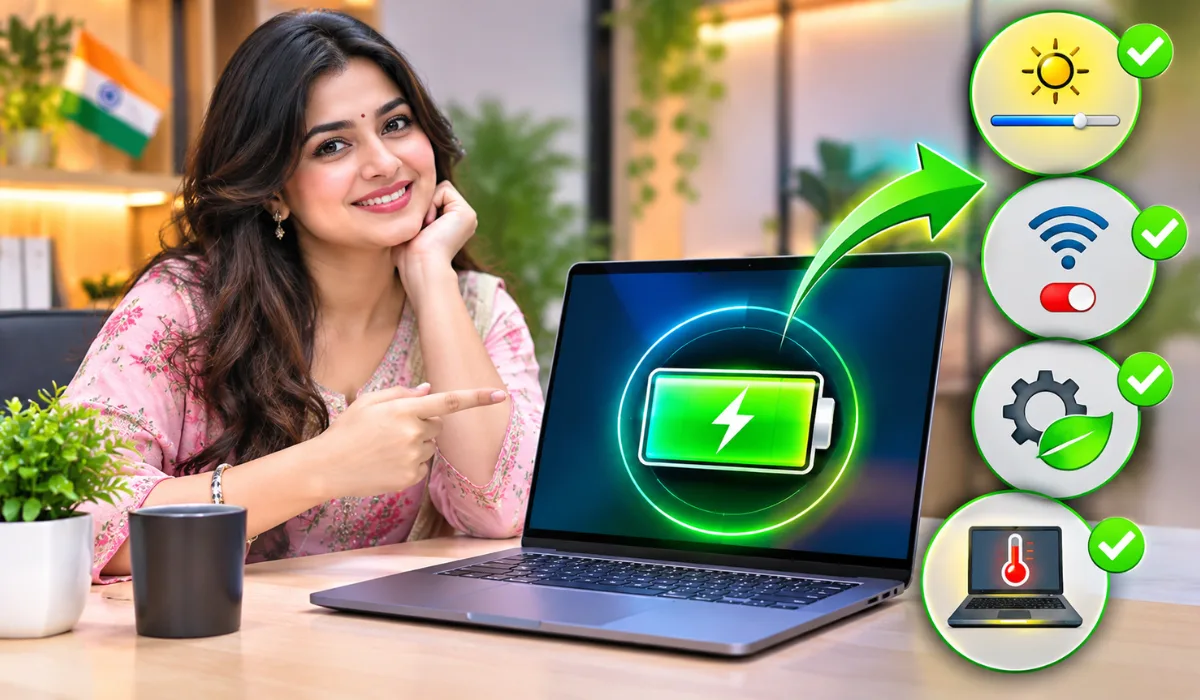
Buying a good laptop in India is a big investment. Following smart tips to extend laptop battery lifespan ensures the machine stays reliable through four years of college or several years of remote office work.
Safe Storage Habits During Long Vacations or Travel
Heading home for Diwali holidays or summer break without carrying a work laptop requires proper storage prep. Leaving a laptop stored inside a cupboard at 0% charge can push the battery into a deep discharge state, making it impossible to turn on weeks later.
On the flip side, storing a laptop at 100% charge in a warm room accelerates chemical aging. Before packing a laptop away for more than two weeks, charge or drain the battery to roughly 50%, shut down the computer completely (do not just close the lid), and store it in a cool, dry drawer.
Knowing When to Replace a Swollen or Dead Battery
Safety always comes first. Over years of exposure to high Indian temperatures and heavy charging cycles, old lithium-ion batteries can sometimes release internal gases and swell up. Watch closely for early warning signs of battery swelling:
- The trackpad becomes hard to click or pushes upward.
- The bottom metal or plastic case bulges unevenly.
- The laptop wobbles when placed flat on a glass table.
If any of these signs appear, stop using and charging the laptop immediately. Never press down on a swollen battery or try to puncture it. Visit an authorized service center right away for a safe replacement.
Read Also: Best Laptops For Office Work In India 2026 Expert Guide
Quick Daily Checklist: Ways to Improve Laptop Battery Performance
Keep this simple daily routine handy to maintain peak battery efficiency without thinking twice:
- Morning Setup: Unplug at 80% charge, set screen brightness to 45%, and switch refresh rate to 60Hz.
- During Work: Close extra browser tabs, pause background cloud syncs, and place the laptop on a hard desk.
- Afternoon Heat: Keep the room ventilated with a fan or AC, and never rest the laptop on pillows or mattresses.
- During Power Cuts: Turn on Energy Saver mode immediately and switch off Bluetooth and keyboard backlights.
- End of Day: Shut down or hibernate the system instead of leaving heavy apps running overnight in sleep mode.
Frequently Asked Questions
1. What are the best laptop battery backup tips for Indian users?
The most effective Laptop Battery Backup Tips For Indian Users include lowering screen brightness to 40–50%, turning on Windows Energy Saver or macOS Low Power Mode early, using the 20–80% charging limit, keeping air vents dust-free, and avoiding using the laptop on soft beds during hot afternoons.
2. Is it safe to keep my laptop plugged in all day in India?
Yes, modern laptops automatically stop sending power to the battery once it reaches 100%. However, keeping a battery at 100% while room temperatures are hot speeds up long-term wear. Enabling built-in Conservation Mode or Battery Health Management to cap charging at 80% makes staying plugged in completely safe.
3. Does using a laptop while charging damage the battery?
Using a laptop while plugged into the wall does not harm the battery during normal tasks like browsing, writing, or watching videos. However, heavy gaming or video rendering while charging generates extra heat, which can shorten battery lifespan over time.
4. How many hours of battery backup should a normal laptop give in India?
A standard thin-and-light office or student laptop should deliver 6 to 9 hours of real-world backup on Wi-Fi. Heavy gaming laptops with dedicated graphics cards usually provide 2.5 to 4 hours of normal use due to their powerful processors.
5. Can I charge my laptop using an inverter during a power cut?
Yes, charging a laptop on a home inverter is safe as long as the inverter is a Pure Sine Wave model. Older square-wave inverters can cause charging adapters to buzz and heat up, so always check inverter specs before plugging in sensitive electronics.
6. Why does my laptop battery drain even when shut down?
A small drop of 1–2% overnight is normal. However, losing 10% or more while turned off usually happens because Windows Fast Startup keeps the system in a semi-awake state, or an Always-On USB port continues charging connected accessories. Turning off Fast Startup in Control Panel fixes this issue immediately.
7. Do battery saver apps actually work on Windows 11?
Most third-party "battery booster" apps found online waste memory and display ads. Windows 11 and macOS already include powerful built-in effective laptop battery management tips and Energy Saver tools that work far better than external software.
Final Thoughts on Maximizing Your Laptop Battery
A weak battery does not have to ruin productivity or cause stress every time the power goes out. By combining smart software tweaks—like lowering screen brightness, taming background browser tabs, and using Energy Saver mode—with heat-smart Indian habits, anyone can unlock hours of reliable performance. Start applying these simple Laptop Battery Backup Tips For Indian Users today, keep your laptop cool, and enjoy worry-free work and study wherever the day takes you.