

Phishing attacks sneak into our daily lives like uninvited guests, trying to steal personal info or lock us out of our own devices. These scams often come through emails, texts, or fake websites that look real. I've seen it happen to friends—sudden bank alerts that weren't real, leading to drained accounts. But you don't need to be a tech expert to fight back. At home, simple habits can make a big difference for you, your kids, and even grandparents sharing the Wi-Fi. This guide shares straightforward steps to spot and stop phishing before it hurts anyone. We'll cover everything from spotting tricks to building family defenses. Let's dive in and keep your digital world safe, step by step.
Understand What Phishing Really Is
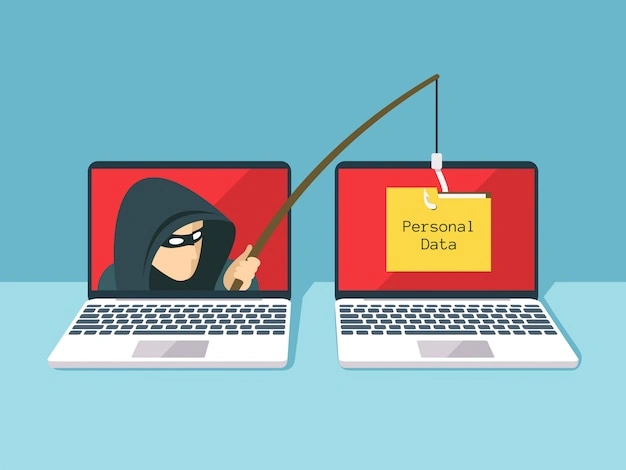
Phishing starts with a clever trick that plays on trust. Scammers pretend to be someone you know, like your bank, online store, or even a family member in trouble. They send messages urging you to click a link, download something, or share sensitive details like passwords or card numbers. It always feels super urgent, with lines like "Your account will close in 24 hours—click here now!" That's the hook. But pause—it's designed to rush you into mistakes.
Picture it like a fishing trip in your inbox. The bait looks tasty: familiar logos, official-sounding words. You click, enter info, and they reel in your data. Or worse, malware infects your device. Common types hit home hard. Spear phishing targets you personally, using details from social media. Smishing does it via text, like "Your package is delayed—track here." Vishing uses calls, with a voice claiming tech support needs your screen shared.
At home, this sneaks up on everyone. Kids chase free game codes. Parents click bill reminders. Retirees get "grandkid emergency" pleas. Stats show billions of attacks yearly, with families losing thousands. I remember my neighbor clicking a fake lottery win—lost savings fast. Key signs? Sender addresses off, like "bank-support@randomsite.xyz." Grammar slips, random attachments, or requests for info you already gave.
Don't panic—that's their goal. Breathe, verify separately. Call the real number from their site, not the message. Make awareness a habit. Chat at dinner: "What would you do here?" Quiz with printed examples. Over time, your family spots phishing like pros. This foundation blocks most attacks before they start. Build it slow, make it stick.
Read Also: 8 Cybersecurity Trends in Computer Technology Changing IT Security
Spot Phishing Emails and Messages Fast
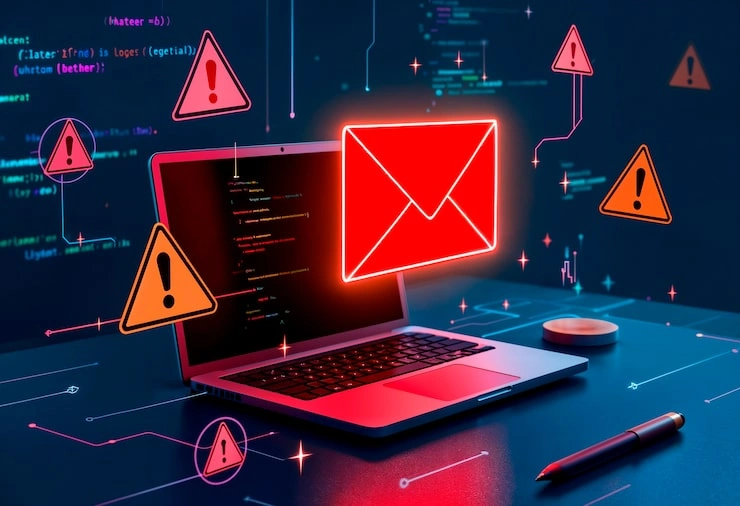
Emails top the phishing list because they mimic real ones so well. You open your inbox, see a bank logo, urgent subject like "Security Alert—Verify Now." Heart races. But slow down. First, scrutinize the sender. Real banks use "@bank.com," not "@bank-security.net." Hover over the "From" field—reveals truths. Links too: Mouse over without clicking. If it shows "fakebank-login.ru," trash it. Texts are quicker traps. "Your account suspended. Login: [short link]." Delivery scams peak during shopping seasons. Unknown numbers? Ignore. Check via official app, not the text.
Calls add voice—vishing. "Ma'am, your computer has a virus. Let me fix it." They push remote access. Hang up, redial from known contact. Pop-ups on sites yell "Update Flash!" or "Win a prize!" Close the tab. Red flags stack up. Pressure tactics: "Act in 5 minutes!" Bad English: "You account need update." Unsolicited attachments labeled "invoice.pdf." Generic greetings: "Dear User" instead of your name.
Practice spotting. Save safe scam examples as screens. Review weekly. Forward suspects to a family group chat for votes—fun and educational. One evening, my teen caught a fake school alert. We laughed, then blocked it. Tools help: Email clients flag suspects. Train them by marking junk. For texts, apps filter unknowns. Delete replies—they confirm you're active. I dodged one last month—a "friend" needing cash via wire. Called them: All good. Verification saved the day. Teach this reflex: Pause five minutes, check source. Your home inbox stays clean.
Strengthen Passwords and Use Managers
Weak passwords invite disaster—one breach cracks everything. Phishers grab them, then hit linked accounts. Fix it: Craft strong ones. Blend uppercase, lowercase, numbers, symbols. Aim 14+ characters. Use passphrases like "SunnyHill$RunsWild2023!"—easy recall, hard guess. Ditch reuse. Unique per site. Password managers shine here. They generate, store, autofill securely. One master password unlocks all. Family plans cover multiple users.
Pick a reputable manager. Install on phones, laptops, routers if possible. Import existing logins. Let it create new beasts. Enable breach alerts—flags exposed ones. Layer with 2FA. Apps send codes to phone. Hardware keys best for big accounts. Biometrics add ease. Home setup: Family meeting. Each gets account. Practice logins. Update old sites first—social, email, banks. Change after vacations or odd emails. Audit quarterly: Manager reports weaknesses.
Steps to start:
- Download and set master (unique, long).
- Add sites gradually.
- Enable 2FA everywhere possible.
- Sync across devices.
My manager pinged a leaked password once. Swapped it fast—no harm. Kids now use it for games. Whole house secured, no memorizing hassle.
Keep Software Updated and Devices Secure
- Old software equals open doors. Unpatched holes let phishing payloads through. Phones auto-update? Turn it on. Computers too—weekly restarts push fixes.
- Antivirus isn't optional. Real-time shields block malicious links, scans downloads. Phishing-specific modes warn mid-click. Free versions work; paid add VPNs.
- Router security: Factory passwords? Change now. Admin login: Use strong one. WPA3 encryption. Firmware updates monthly—check maker's site.
- Smart devices: Cameras, thermostats vulnerable. App updates, unique passwords. Isolate on guest net.
- Locks: PINs, fingerprints. No shoulder-surfing.
| Phishing Prevention Layer | Why It Helps | Quick Setup Tip |
|---|---|---|
| Auto-Updates | Patches exploits fast | Settings > Toggle on all devices |
| Antivirus | Blocks bad links/files | Install, scan weekly, enable web shield |
| Router Change | Stops Wi-Fi hijacks | Log in (192.168.1.1), new password |
| 2FA Everywhere | Extra code barrier | App settings > Turn on |
| Backups | Ransomware recovery | External drive + cloud, 3-2-1 rule |
Sunday ritual: Update round. Devices plugged, scans run. Caught a sneaky browser flaw last time—phishing site bounced. Guest Wi-Fi for visitors. Monitor connected devices via router app. Clean house, safe net.
Educate Your Family on Phishing Dangers
Ignorance fuels home phishing. Clicks from unaware loved ones spread trouble. Make education engaging. Skip lectures—use stories. "Uncle Bob lost $500 to a fake cop call." Relatable sticks.
Family rules: No solo clicks on urgents. Verify together. "Mom, this text weird?" Group decisions build smarts. Kids: Games rule. Phishing quizzes apps exist. Role-play: Fake email arrives, act out responses. Rewards for catches—ice cream points. Teens: Social traps. Fake profiles begging funds. Privacy lockdown: Friends only, no stranger links.
- Seniors: Simplify. Large-print cheat sheets. Walk-throughs on spotting calls.
- Monthly meetings: 15 minutes. New scam examples. Wins shared.
- Game night twist: Print emails, vote real/fake. Laughter bonds, lessons land.
- My family spots 90% now. Kid flagged a game scam—saved device. Pride swells, risks drop.
You May Also Like: Latest Security Technology Products for Data Breach Prevention
Backup Data and Plan for Recovery
Phishing escalates to ransomware: Files encrypted, paywall up. Backups save you. 3-2-1: Three copies, two formats, one offsite. External HDD + cloud.
- Encrypt backups. Test restore monthly—practice averts panic.
- Incident plan: Print steps. Hit? Isolate device, scan, restore. Notify banks, freeze cards.
- Monitor: Account alerts for logins, spends. Breach scanners email warnings.
- Roles: Techie scans, finance watcher tracks.
- Drill yearly: Simulate attack. Quick recovery builds confidence.
- Spilled coffee on drive once—backup flawless. Phishing won't faze us.
Extra Layers: Browser Tools and Habits
- Browsers pack defenses. Safe mode on—blocks known bad sites. Extensions: Blockers halt ads hiding phishing.
- Shopping: HTTPS only, padlock check. Virtual cards limit exposure.
- Email hacks: Filters for "verify," "urgent." Junk train.
- Phones: Silence unknowns. App permissions tight.
- Work-home split: Separate emails.
- Daily: History clear, logouts.
- Tweaks compound. Seatbelt effect—routine safety.
Read: Latest Security Technology products worth the investment
Create a Safe Home Internet Culture
- Culture cements habits. Visual cues: "Pause & Check" posters. Fridge tips.
- Celebrate vigilance. High-fives for blocks.
- Time limits curb impulse clicks.
- Smart speakers: Verify commands.
- Consistency: Daily nudges become nature.
FAQs
What should I do if I click a suspicious link?
Stay calm. Disconnect from the internet right away. Run a full antivirus scan. Change passwords from a clean device. Watch accounts for odd activity and report to your email provider or bank.
How do I tell if a website is phishing?
Check the URL—typos or odd domains are clues. Look for "https://" and a padlock. If it asks for info out of the blue, close it. Call the real company to verify.
Is phishing only about emails?
No, it hits texts, calls, social media, and apps too. Any message pushing quick action could be a scam. Always pause and check the source.
Can kids get phished at home?
Yes, through games or fake giveaways. Teach them simple rules: No sharing info, tell an adult about weird messages. Use kid-safe browsers.
How often should I update my antivirus?
Keep it running with auto-updates daily. Do full scans weekly. Choose one with phishing protection for best results.